A robotic AI voice is often caused by the input script, not only the voice model. Long sentences, missing punctuation, mismatched voice style, and awkward numbers can make a good voice sound mechanical.
Use this checklist before blaming the engine. Small script edits often improve the result faster than switching tools.
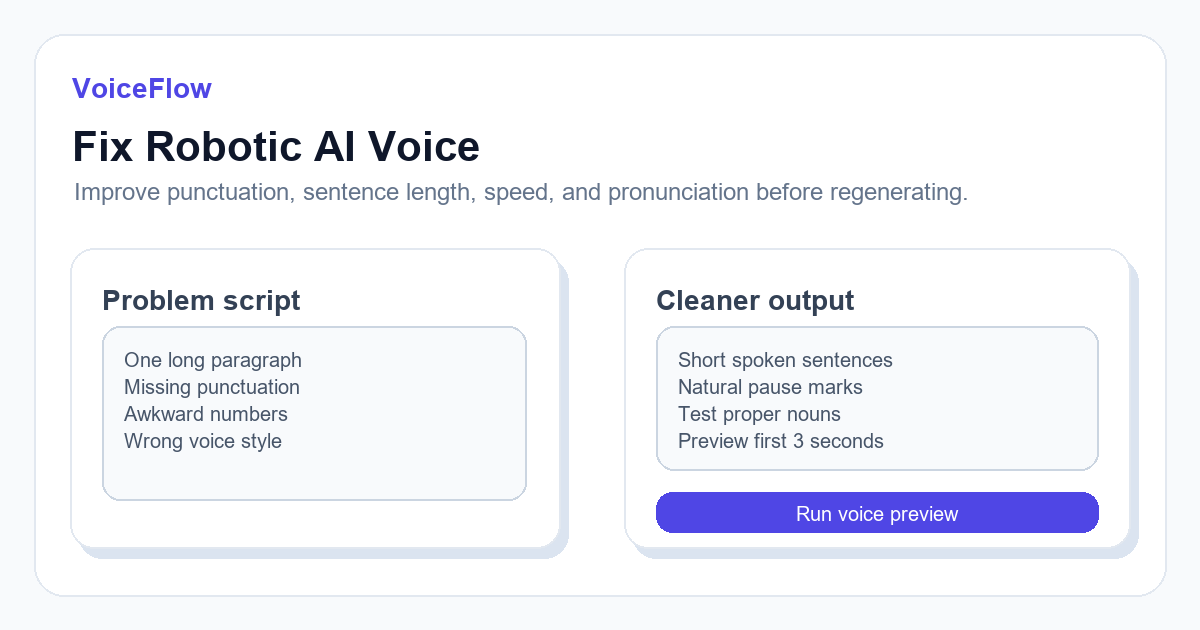
Fix sentence shape first
Text-to-speech systems need punctuation to infer rhythm. If the script is one long paragraph, the voice may rush, pause in strange places, or flatten emphasis.
Break long lines into shorter spoken sentences. Add punctuation where a human speaker would breathe.
- Split sentences longer than 25 to 30 words.
- Use commas for light pauses and periods for clear stops.
- Put important phrases near the beginning or end of a sentence.
- Remove filler that looks fine in writing but sounds heavy aloud.
Match voice style to content
A warm audiobook voice may not work for a fast product demo. A news-like voice may feel too stiff for personal storytelling. For a quick English baseline, compare Jenny AI Voice for friendly narration, Aria AI Voice for polished explainers, and Christopher AI Voice for steadier tutorial delivery. Voice selection should follow the audience and format.
Preview with your own script, not only the official sample. Samples are usually optimized and may hide edge cases.
Watch numbers and proper nouns
Robotic moments often happen around dates, acronyms, product names, and mixed-language phrases. Rewrite them in a pronounceable form when necessary.
For example, if a brand name is read incorrectly, spell it phonetically in the script or test a different phrasing.
Preview in small pieces
Generate three test sentences: one long sentence, one sentence with names or numbers, and one sentence that needs emotion. If those work, the full script is more likely to work.
If they fail, adjust punctuation, speed, or voice before spending time on a full render.
Fix by workflow, not by model switching
If an AI voice sounds robotic, do not switch models first. Start by identifying the workflow: short-form hooks, YouTube narration, course modules, product demos, or multilingual content. Each format needs a different script shape and preview length.
- Short videos: test the first three seconds in the TikTok Voiceover Generator and rewrite the hook before changing voices.
- YouTube narration: test a 30-second paragraph in the YouTube Voiceover Generator so you can hear pacing across longer sentences.
- General TTS: use Free Text to Speech with three diagnostic sentences before generating a full script.
Rewrite example: from written text to spoken text
Written version: "This tool helps creators efficiently generate subtitles and improve post-production workflow." Spoken version: "Still typing captions by hand? A three-minute video can take half an hour to subtitle. Upload the video, generate an SRT file, and review the text before editing."
The second version gives the voice more natural pauses. It also creates clearer internal links between voiceover, captions, and the final editing workflow.
Related voice workflows
Use these entry points when you want to test the advice in this guide with a real script and compare voices by production scenario.
Ready to try it? Use VoiceIndex AI to keep voice, subtitles, and audio workflow closer together. Need a fixed character voice? Try cloning.
Test a cleaner voiceover script Open AI Voice CloningFAQ
Can punctuation really change AI voice quality?
Yes. Punctuation gives the system rhythm and pause hints. A well-punctuated spoken script usually sounds more natural.
Is a robotic voice always caused by a bad model?
No. The model matters, but script structure, speed, and voice choice often cause the most noticeable issues.