If you have an MP4 or MOV video and need subtitles for editing software or YouTube, the fastest path is usually automatic transcription followed by a short manual review.
SRT files include timestamps, so they can be imported into Premiere Pro, Final Cut, DaVinci Resolve, CapCut, and most video platforms.
Why SRT is useful for editing
SRT is a plain text subtitle format. Each caption block contains an index, a start and end time, and the subtitle text. This makes it easy to edit, translate, and import into video tools.
Compared with manually placing text on a timeline, SRT saves time because timing is already attached to each caption.
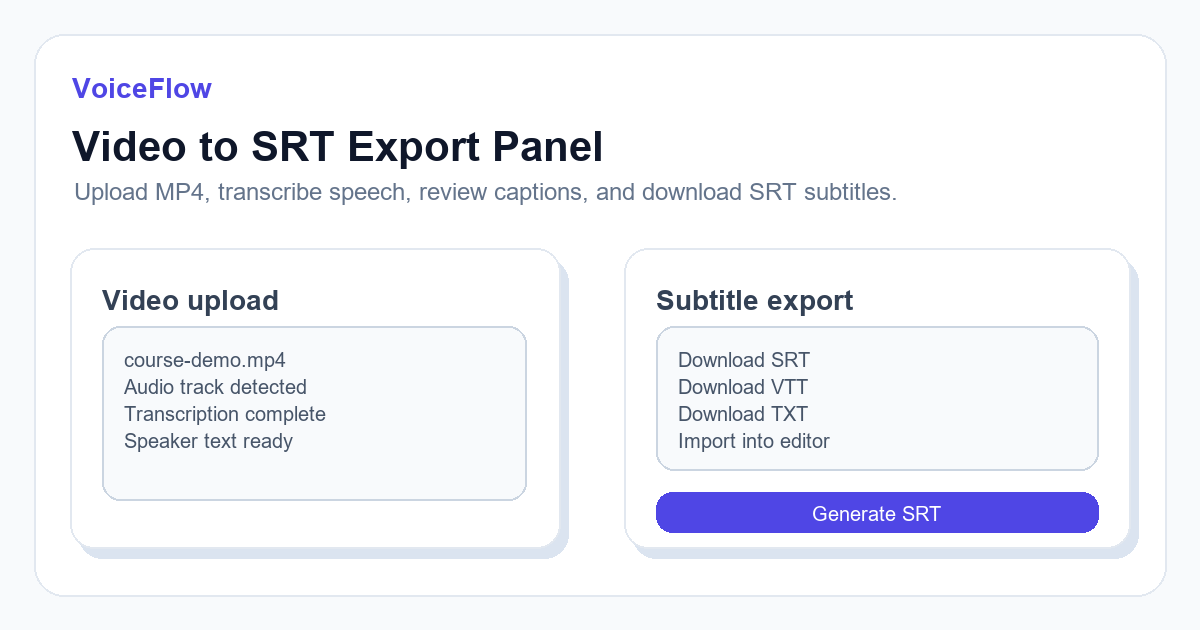
- Use SRT for editing software and video platforms.
- Use VTT for web players when needed.
- Use TXT when you only need a transcript without timestamps.
Basic workflow
Open the video-to-SRT tool, upload your video, wait for transcription, review the text, and download the SRT file. You usually do not need to convert MP4 to MP3 first.
After downloading, import the subtitle file into your editor and adjust style, position, and line breaks.
What to review before export
Automatic captions can save a lot of time, but you should still check names, numbers, brand terms, and technical words. Also check the first few minutes and the final minute for timing drift.
If the beginning is correct but the end drifts, the issue may be silent sections, edits, or audio track changes rather than spelling.
Importing the SRT file
In Premiere, import the SRT file and place it on the timeline. In CapCut or YouTube Studio, use the subtitle upload option and select the downloaded file.
Once imported, keep text edits in one place. If you edit captions in the video editor, avoid re-exporting from an older transcript.
Connect voiceover and subtitles in one workflow
If the video does not have narration yet, create the voiceover first with Free Text to Speech, edit the video around the approved audio, and then use Video to SRT to generate captions from the final cut.
For short social clips, start with the TikTok Voiceover Generator so the pacing works on mobile. For tutorials, reviews, and long-form explainers, start with the YouTube Voiceover Generator and test a longer paragraph before exporting the full audio.
When not to process the whole video at once
Do not start with the full file when the audio has heavy background music, overlapping speakers, distant microphones, or many silent edits. Run a three-to-five-minute sample first and check whether timing remains stable from beginning to end.
- For interviews, test the densest conversation segment.
- For courses, test the section with the most technical terms.
- For compilations, test the part with the most transitions and silence.
Related subtitle and voice tools
If this article is part of a video workflow, these pages connect subtitle generation, transcription, and voiceover planning.
Ready to try it? Use VoiceIndex AI to keep voice, subtitles, and audio workflow closer together.
Generate SRT subtitlesFAQ
Can MP4 files be converted directly to SRT?
Yes. A video-to-SRT workflow reads the audio track from the video, transcribes speech, and exports timestamped subtitles.
Do I need to convert MP4 to MP3 first?
Usually no. Direct video upload is simpler when the tool can read the audio track.