If you only have an audio recording, you can still publish it as a captioned video. The workflow is: transcribe the audio, prepare subtitles, create a visual video, and keep the same audio source through the whole process.
This is useful for podcasts, voice notes, interviews, course clips, and social posts.
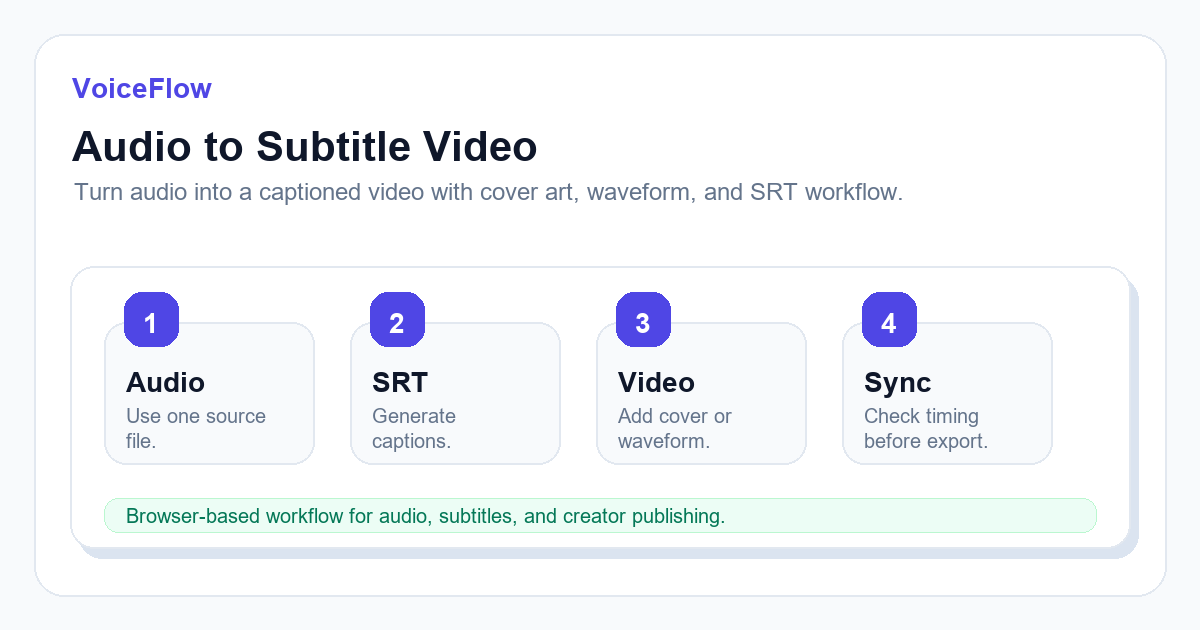
Use one source audio file
The most common timing mistake happens when subtitles are generated from one audio file but the video is created from a different edited version.
Use the same source audio for transcription and video generation, or regenerate subtitles after editing the audio.
Generate transcript and SRT
Upload the audio to a speech-to-text workflow and export both transcript text and SRT subtitles. Review names, numbers, and technical words before building the final video.
If the audio is long, check the beginning, middle, and end for timing drift.
Create the video layer
A simple cover image, waveform, or branded background is enough for many audio-first videos. The visual should not distract from captions.
For YouTube or social platforms, keep text within safe margins and use a readable caption size.
Final sync check
Before publishing, check a few subtitle blocks after any silence or transition. If the captions drift, fix the subtitle timing before exporting the final video.
Keep the SRT file in your project folder so future edits do not require starting over.
Related subtitle and voice tools
If this article is part of a video workflow, these pages connect subtitle generation, transcription, and voiceover planning.
Ready to try it? Use VoiceIndex AI to keep voice, subtitles, and audio workflow closer together.
Create a video from audioFAQ
Can I make a video from audio only?
Yes. You can combine audio with a cover image, waveform, or simple visual background, then add subtitles.
Should I create subtitles before or after making the video?
Create subtitles from the final audio source. If you edit the audio after transcription, regenerate or resync subtitles.